/ 01
The idea
The farm in your head, on the screen.
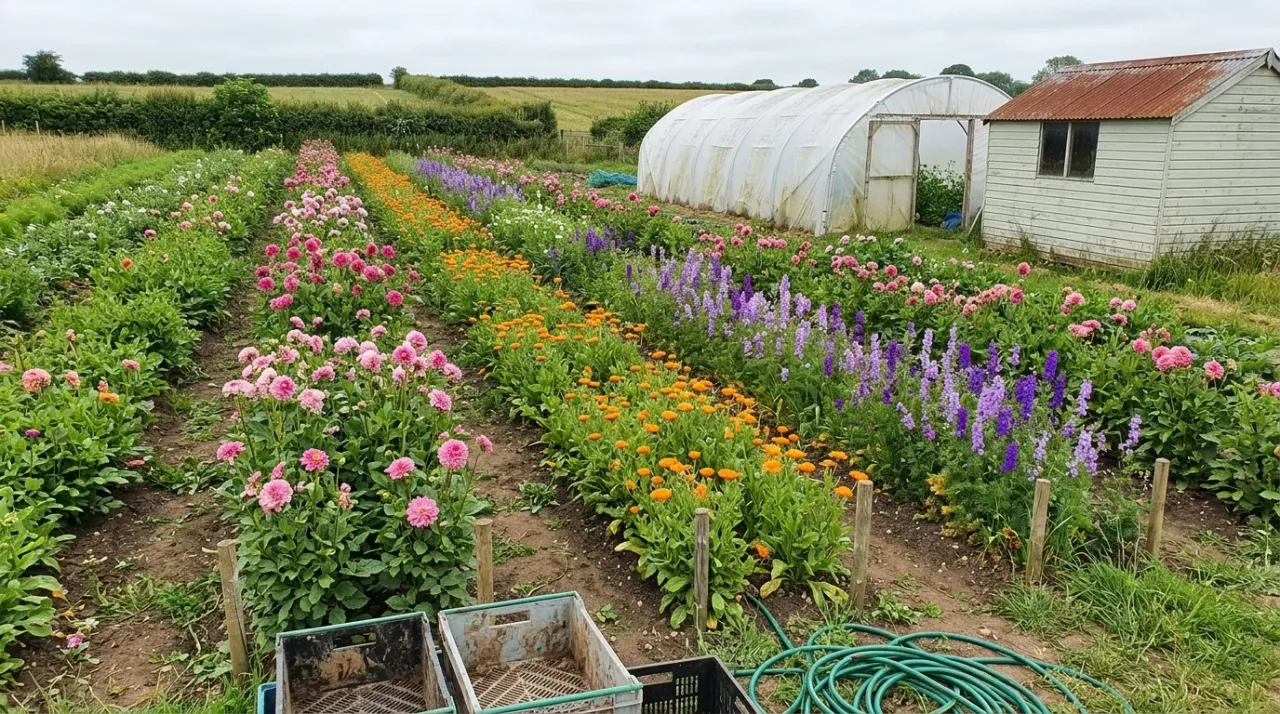
Lists are good at telling you what's in bed A4. They're bad at telling you what the farm looks like: which end of the field is all dahlias, how much of the tunnel is empty, where the frost will bite. So the Growing screen in BloomOS now opens on a map.
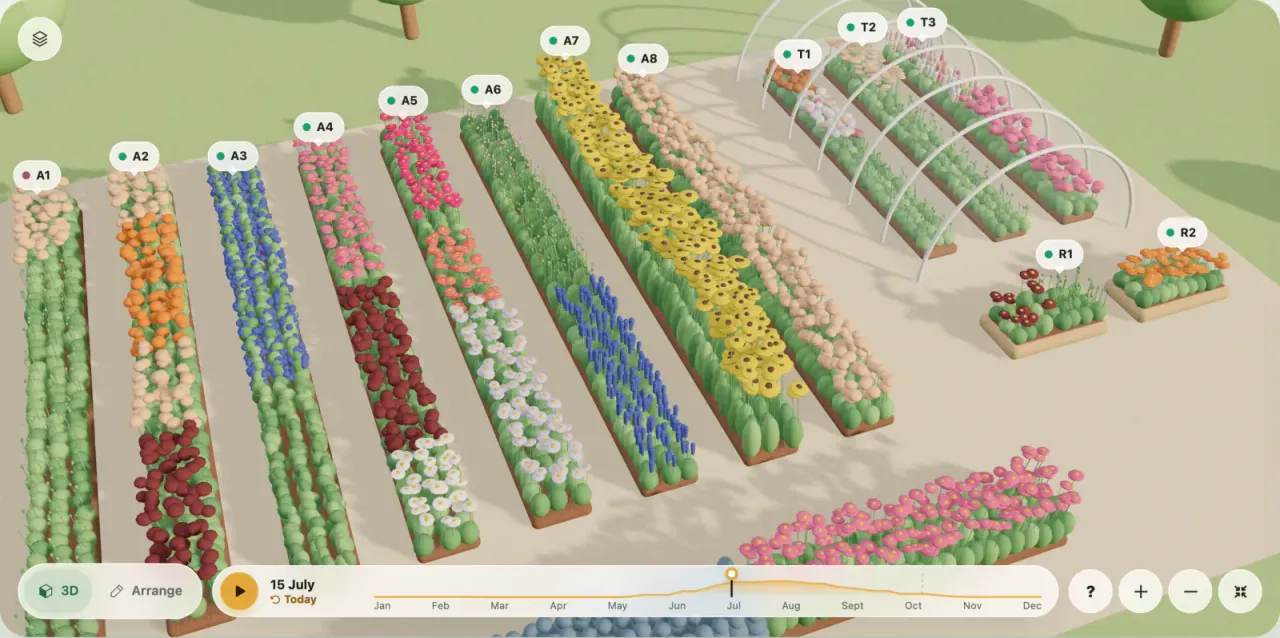
It isn't a drawing you have to keep up to date. It's built from the same beds and plantings you already record: every bed in its place, every crop drawn at the stage it's at, coloured like the flowers in it.
/ 02
The year
Scrub through the season.
Along the bottom of the map is the year, January to December. Drag it and the farm grows: seed in the ground in March, green rows in May, colour in July, beds cut back in October. Press play and the whole season runs through in a few seconds; press Today and you're back.
It's a surprisingly useful way to look at a plan. A bed that's bare in June shows up as bare. A tunnel that's full in May and empty by August says sow something. A plan that looked fine as a list looks different when you can see it.
/ 03
The beds
Tap one, and do the job.
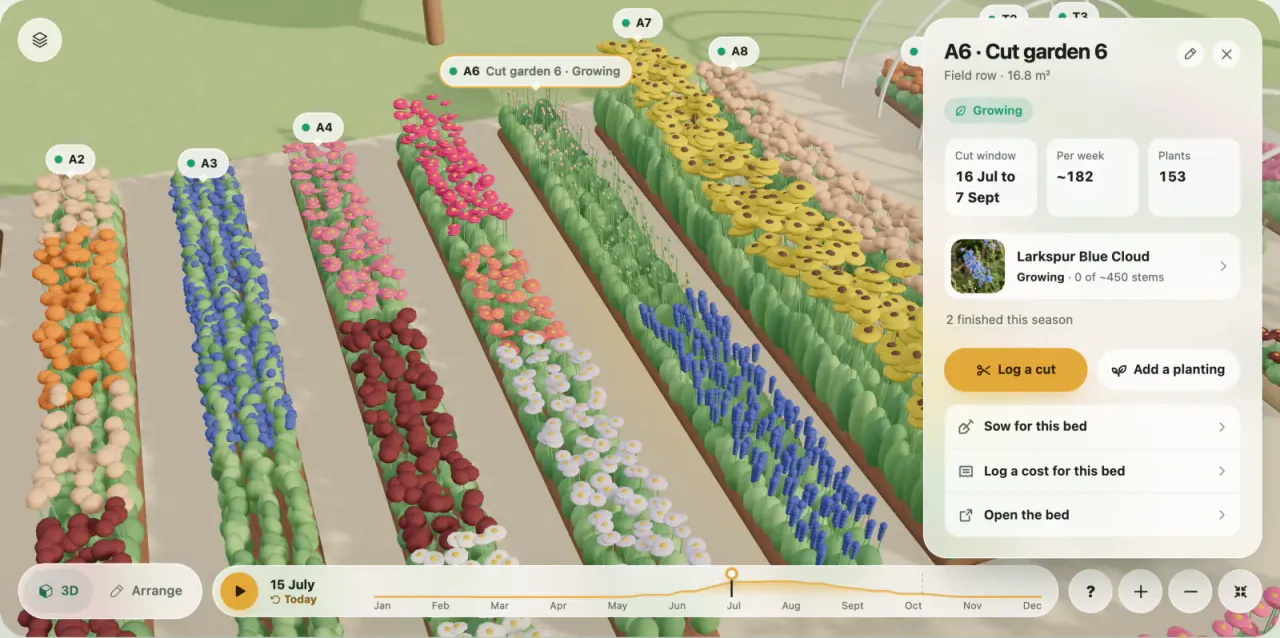
Tap any bed and its card opens beside it: what's growing, the cutting window, a rough number of stems a week and the plants in it. From there you can log a cut, add a planting, plan a sowing for that bed, log a cost against it, or open the bed in full.
/ 04
The numbers
Which beds earned their keep.
The layers menu lays your records over the beds themselves. Choose Stems cut and every bed glows with what it's given you this season; Sales shows what it brought in; Profit takes off the costs logged against it; Waste shows the stems that went on the heap.
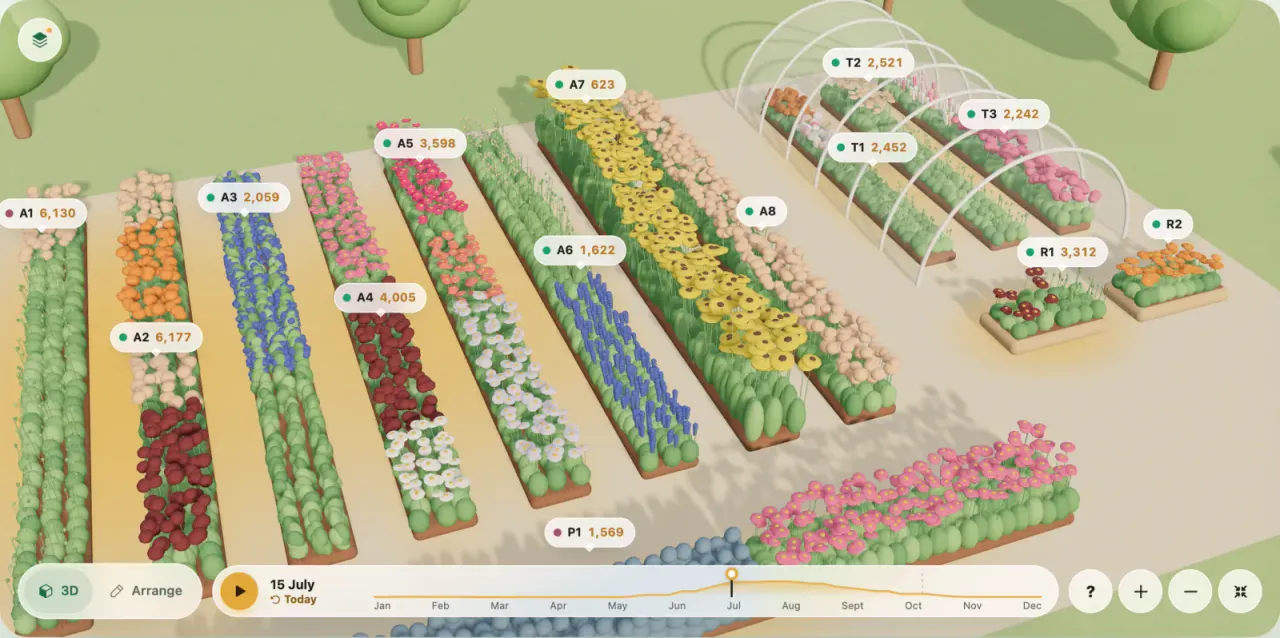
That's the question our profit per bed piece argues every grower should be asking, answered at a glance rather than with an evening and a spreadsheet.
/ 05
The weather
Frost, before it arrives.
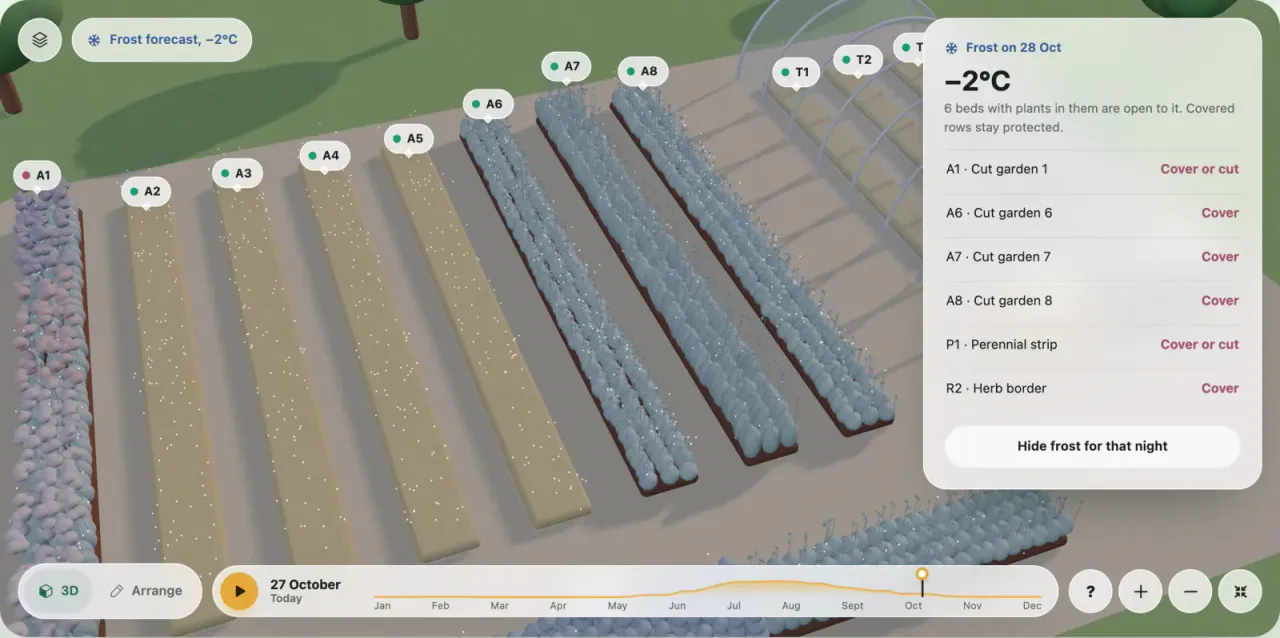
When a frost is forecast, the map tells you which beds are open to it. A card lists the beds with plants in them that aren't under cover, with cover or cut beside each one, so the evening before a frost becomes a short list rather than a walk round the farm with a torch.
/ 06
The cool room
And the compost heap behind it.
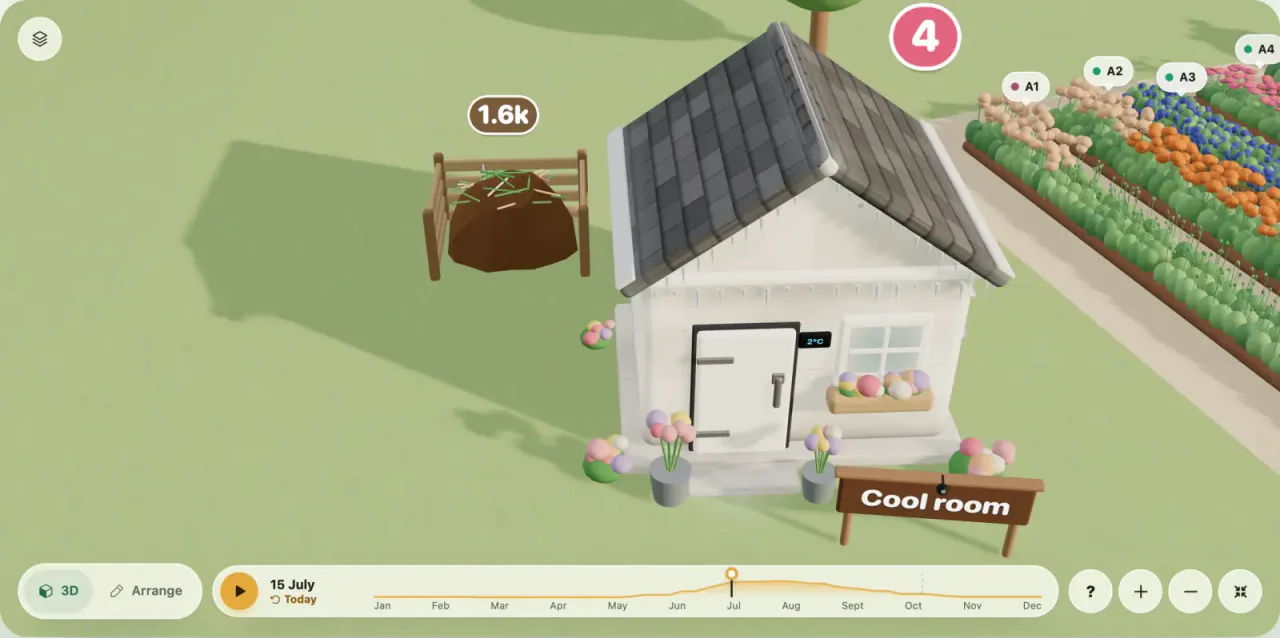
The cool room sits on the map too, with a little count of what's in it, and the door swings open with a breath of cold air when a cut arrives. Round the back is the compost heap, and it fills up with the stems you've binned this season. It's a gentle way of keeping waste in sight: a heap that's getting big is worth a look at what's not selling.
/ 07
The light
Morning, even at five in the evening.
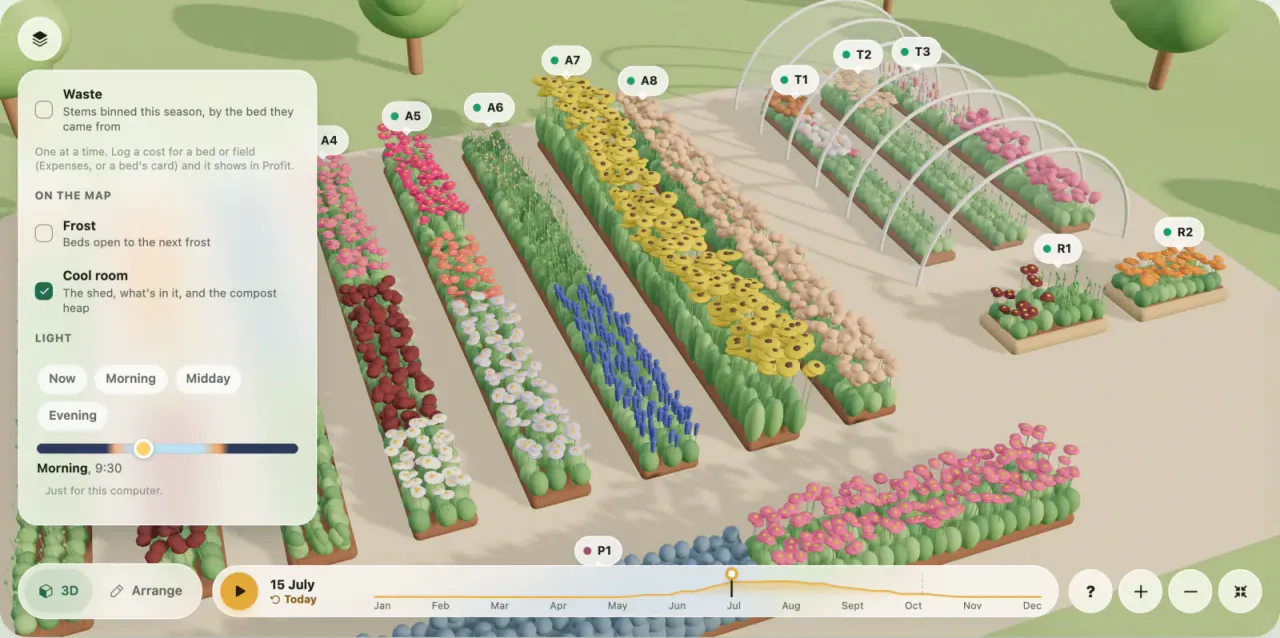
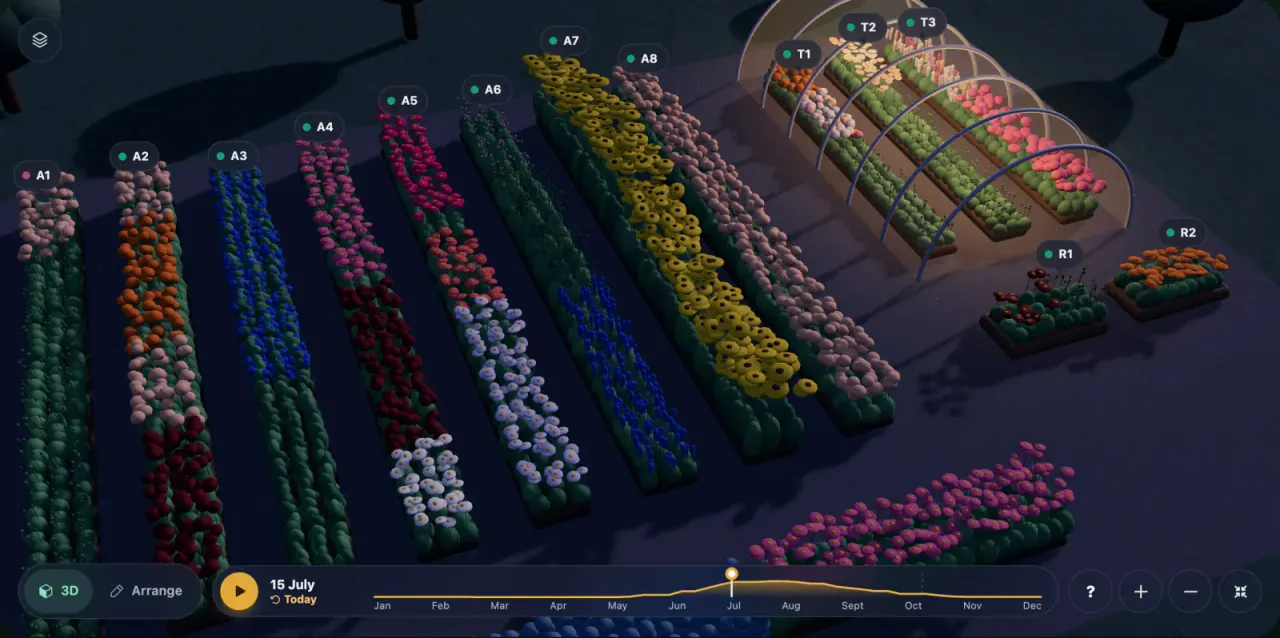
The farm is lit for the time of day, with real shadows from where the sun would be. That's lovely at breakfast, but if you only get to the computer after a day job, you'd always see it in long evening shadow. So the layers menu has a Light picker: now, morning, midday or evening, or slide to any time you like.
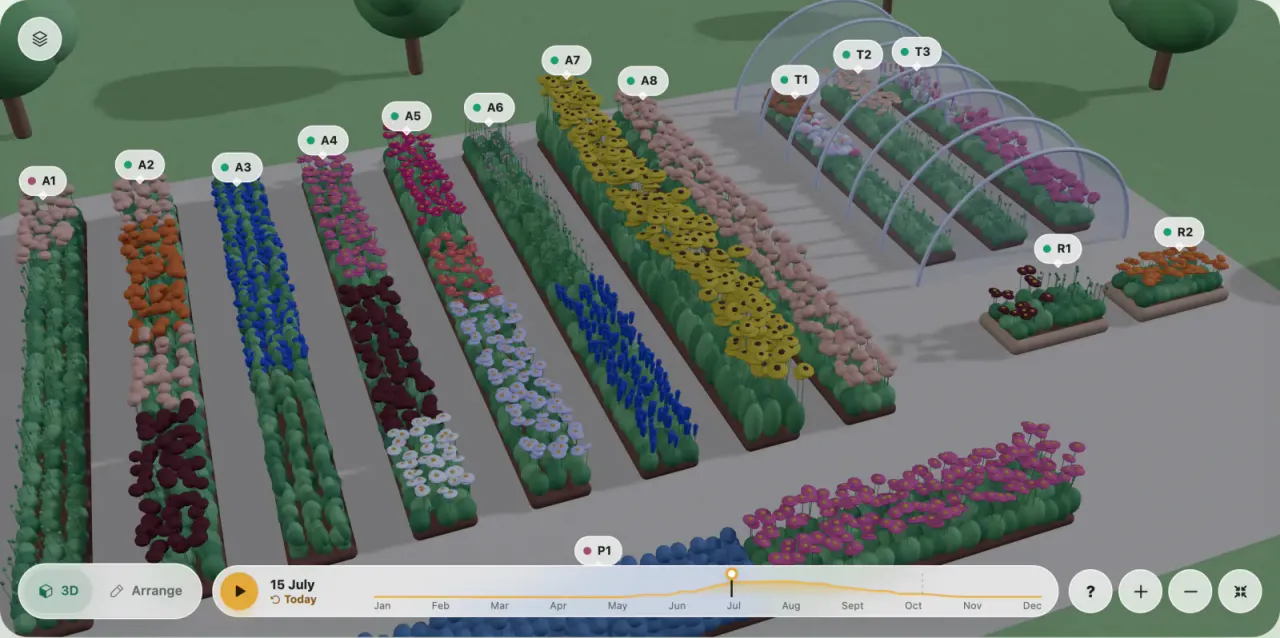
And in dark mode, the farm is lit as it would be at night.
/ 08
Getting started
It's already there.
If you've recorded beds in BloomOS, open Growing and choose Map. Your beds are laid out for you to start with; you can then move, resize and rearrange them to match the real farm, add tunnels and draw new beds. Our guide to drawing your farm walks through it.
/ 09
Questions
What growers ask.
Do I have to draw my farm before I can use the map?
No. Your existing beds are laid out for you, and you can arrange them to match the real farm whenever you like.
Where does the map get its information?
From the beds, plantings, cuts, sales, costs and waste you already record in BloomOS. Nothing is entered twice.
Can I see the farm at a different time of year?
Yes. Drag the year along the bottom of the map, or press play to watch the whole season.
Does the map work on a phone?
The 3D map is built for a bigger screen. On a phone, BloomOS keeps to the quick jobs: logging a cut, a field note, the day's list.
From the field
Your farm, as you know it.
The farm map draws itself from the beds and plantings you already keep in BloomOS. Founding farms are free for life.